Hello community,
today, I would like to introduce you to a very helpful tool that generates summaries of various YouTube videos in just a few minutes.
Whether you need teaching materials or ideas for your next blog post, this tool means you don’t have to sit in front of the screen taking notes, you can simply use AI to compile the most important points.
The tool is called WayinVideo and is very easy to use:
I will briefly walk you through a tutorial.

Once you have registered or logged in, the free version gives you 200 minutes to summarize several YouTube videos.
Copy the URL of the desired YouTube video and click on the arrow on the right to start the generation process.
One of my favorite channels is “Brett in Tech”. It regularly presents the latest, and most efficient tools. The selection is excellent and extremely helpful for everyday use. In order to create a list of tools for myself, I let the AI summarize the creator’s videos and have all the suggestions at a glance.
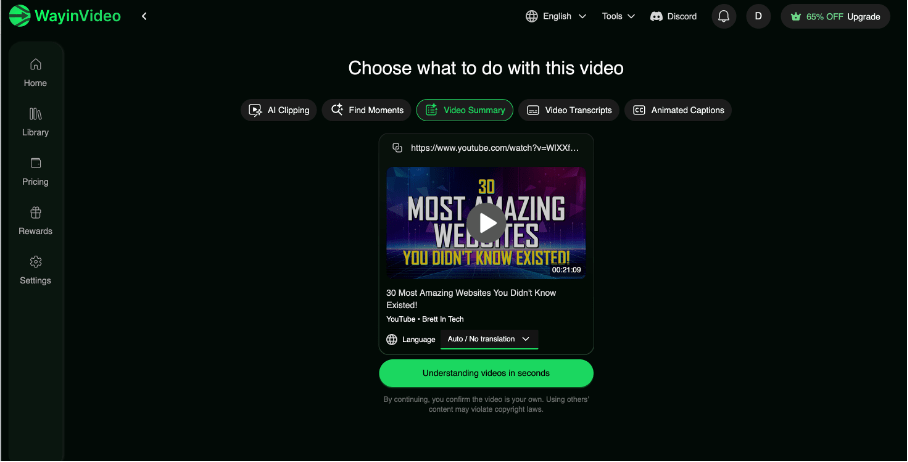
There are various functions that can be applied to this YouTube video. For example, you can use the magnifying glass to search for important moments or scenes in the video, summarize the content, or add subtitles.
Once the tool has found the video, you can start the process by clicking on “understanding videos in seconds.”
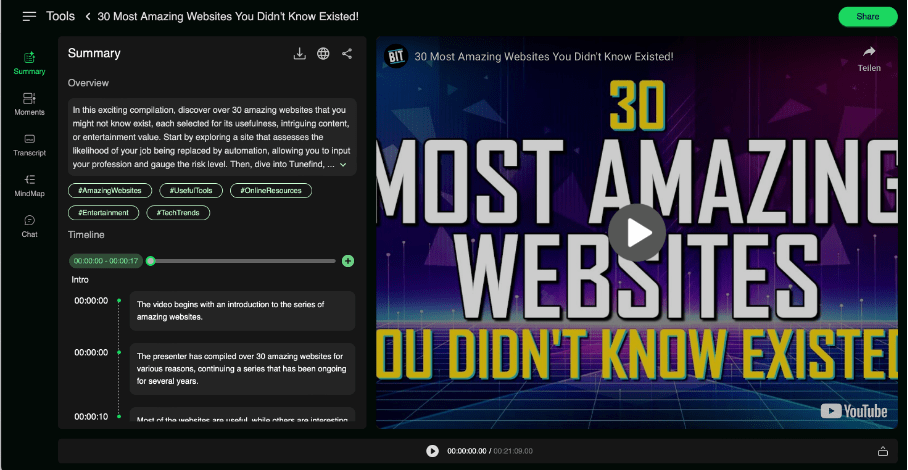
After a few seconds, you will see on the left-hand side how the AI has divided the video into chapters and added hashtags, and you will have the option to download this generated summary.
The summary can be downloaded in two different formats: TXT (full content or outline only) and Markdown (full content or outline only).
I always choose the TXT full content option.
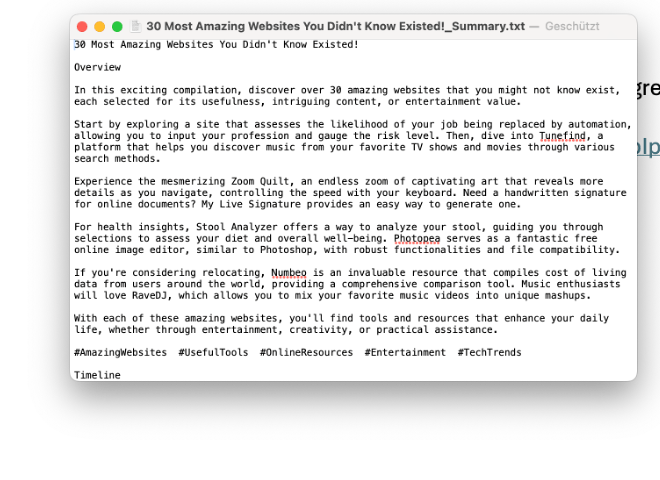
This is what the txt file looks like. When I click on “Edit” at the top, I can select the entire text, copy it, and save it in a Word document.
That’s all there is to it.
Feel free to try out the tool!
 tafanariAI
Hinterlasse einen Kommentar